Minimalist Spatial Orientation: Preserving Visual Calm in Notion
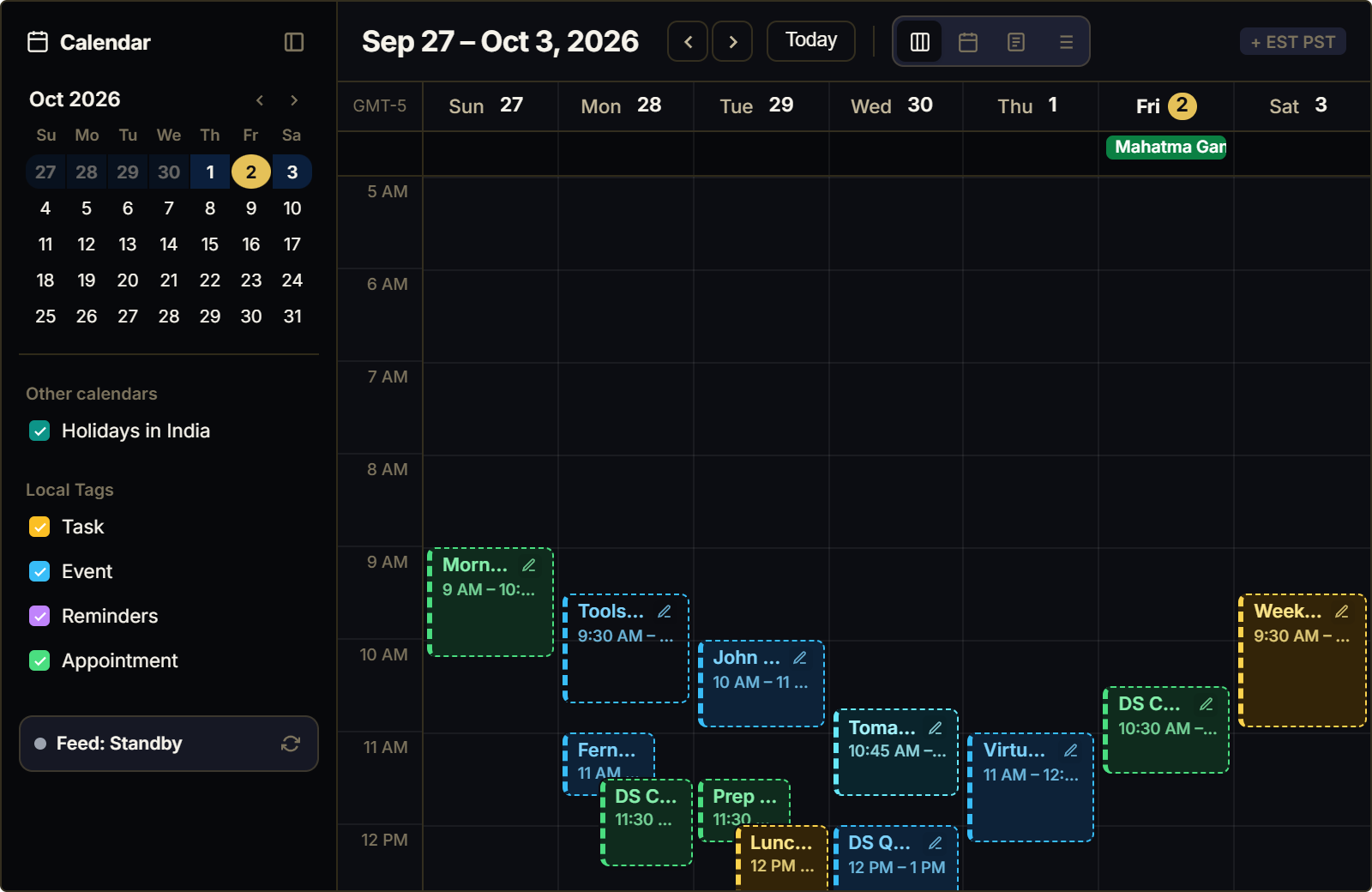
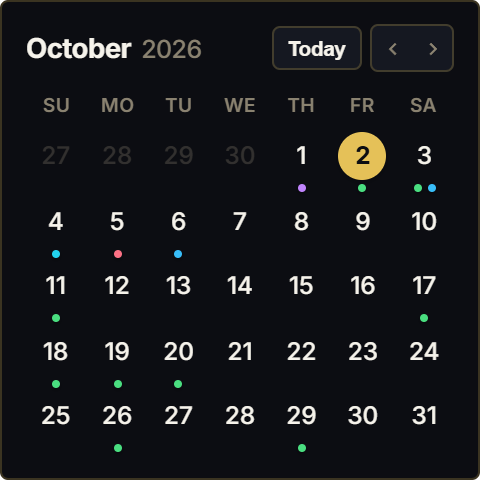
In workspace architecture, visual rhythm matters. A beautifully proportioned calendar grid provides an anchor of calm in personal dashboards, journaling hubs, and writing sanctuaries.
The widget automatically advances months on the first of every month, requiring zero ongoing maintenance. Clicking any date highlights that day and displays quick day notes and day numbers.
Engineered with clean 1px perimeter borders and zero drop shadows, the card blends seamlessly with Notion's native Dark Mode (#1a1a1a) and Light Mode (#ffffff) canvas.
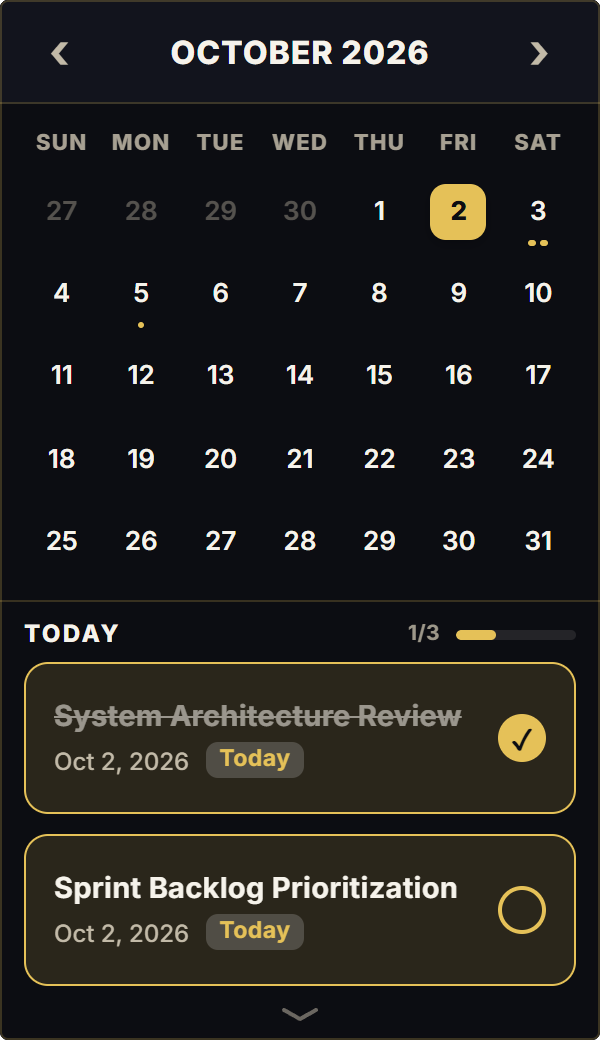
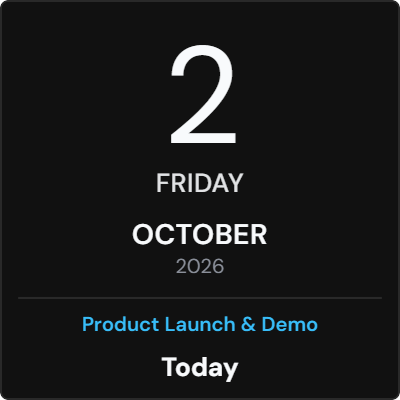
4 Ways to Structure Your Notion Calendar Dashboard
The Morning Orientation Anchor
Place the Classic Calendar at the top of your Notion home page. Checking today's date and the remaining days in the month creates an immediate sense of temporal orientation.
The Week Number Navigation Rule
Toggle ISO week numbers (W01 to W52) to align your weekly sprints with corporate quarters and international project deadlines.
Quick Day Scratchpad Logging
Click today's date to open a lightweight scratchpad for jotting down quick reminders or daily reflection thoughts.
The Distraction-Free Author Desk
Pair the Classic Calendar with full-screen Notion writing mode for an elegant, distraction-free environment while drafting long-form content.
Architectural Breakdown: Classic Calendar Widget vs. Notion Database Views
Why standalone visual calendar widgets outperform native database views for personal dashboard setups:
Database Tables & Records
Best for deep historical storage, relations, and structured records