The Schedule-Action Divide: Why Disconnected Task Lists Fail
The fundamental flaw of traditional productivity systems is maintaining tasks and time in disconnected silos. You maintain a master to-do list with 25 pending items in one database, while your calendar lives in an external window. Without calendar context, you instinctively schedule 12 hours of ambitious work on a Thursday that only contains 90 minutes of free time between client meetings.
The inevitable result is chronic over-commitment, end-of-day guilt, and a creeping backlog of rolled-over tasks that destroys your motivation. In behavioral psychology, a task without a temporal anchor is merely a wish.
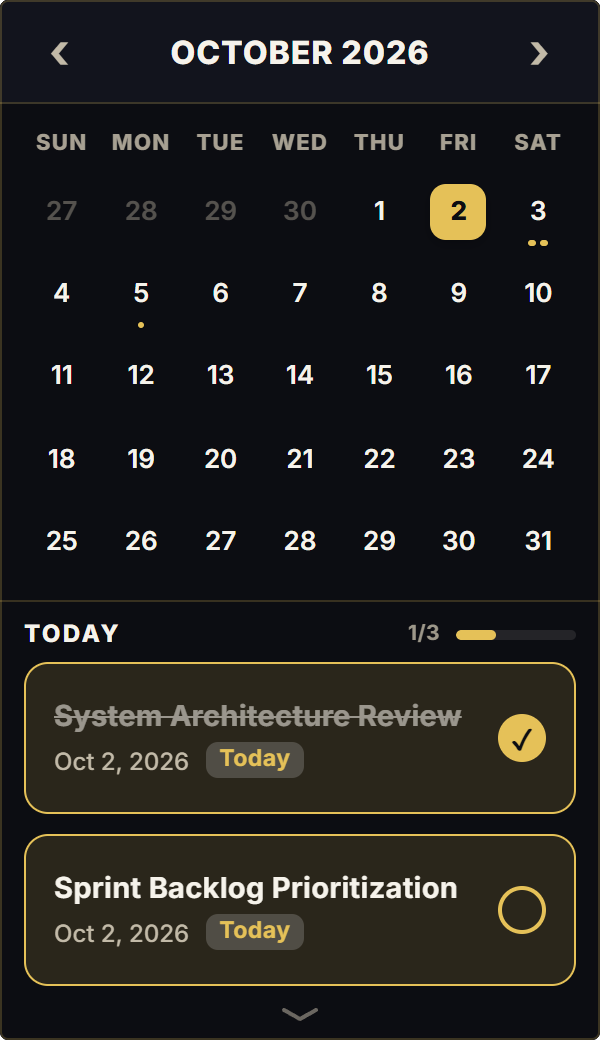
The Calendar & Tasks widget bridges this divide by uniting an interactive monthly calendar with a date-specific daily checklist on a single, compact chassis. When you select a date, you immediately see the exact task commitments assigned to that day.
Temporal Anchoring: Turning Tasks into Realistic Time Commitments
Parkinson's Law dictates that work expands to fill the time available for its completion. By anchoring tasks to specific calendar dates rather than leaving them in an unstructured global backlog, you enforce realistic capacity constraints.
The interactive date selector allows you to plan your week with tactile ease: click Monday to review morning priorities, click Wednesday to queue up deliverables, and click Friday to schedule weekly retrospectives.
Built-in local browser storage guarantees instant, frictionless checklist toggling with zero database loading spinners, zero formula recalculations, and complete data privacy.
4 Actionable Protocols for Unified Calendar Planning
The 3-Priority Daily Ceiling
Cap your daily checklist at 3 essential needle-moving tasks. Allocate them to specific calendar days to prevent overwhelming yourself with unrealistic backlogs.
The Sunday Weekly Allocation
Every Sunday evening, review the upcoming month grid in your widget. Click through each day of the coming week to distribute key deliverables across open days.
Date-Specific Quick Capture
When a future obligation arises (such as following up with a client next Thursday), click directly on that future date in the widget and add the task immediately.
The 5:00 PM Shutdown Rollover
At the end of your workday, review today's checklist. Check off completed items and drag any deferred tasks to tomorrow's date to clear your mental slate.
Architectural Breakdown: Integrated Widget vs. Complex Notion Databases
Why an integrated calendar-task card delivers a smoother daily workflow than multi-table relational databases:
Database Tables & Records
Best for deep historical storage, relations, and structured records