Best Notion Widgets in 2026 (Free & Aesthetic)
Discover the best free aesthetic Notion widgets in 2026. Level up your workspace with minimal clocks, habit trackers, Google Calendar embeds, and interactive charts.

Notion is the most versatile digital workspace app, but an out-of-the-box page can often feel clinical or empty. Whether you are building a personal life dashboard, a student study hub, or a business command center, the right aesthetic Notion widgets transform a plain document into an interactive, motivating personal operating system.
In this curated 2026 guide, we’ve selected the highest-performing Notion widgets that require zero database setup, load instantly with zero layout shifts, and match Notion Dark Mode and Light Mode natively.
1. Aesthetic Time & Clock Widgets
A stylish clock is the visual centerpiece of aesthetic Notion dashboards across Pinterest and TikTok. It grounds your workspace and provides immediate situational awareness the moment you open your page.
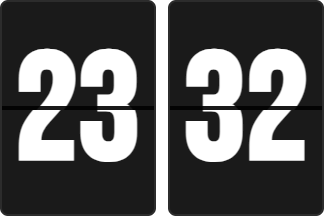
The Minimal Retro Flip Clock
The Retro Flip Clock brings vintage mechanical split-flap aesthetics into your digital workspace. Featuring authentic flip card physics, smooth animations, and AM/PM or 24-hour toggles, it immediately turns an empty header into a visual focal point.
- Customize Retro Flip Clock in Studio →
- For a complete breakdown of analog dials, monospace digits, and world clocks, explore our in-depth guide to the 10 Best Aesthetic Notion Clocks.
2. Productivity & Daily Rhythm Widgets
While Notion has robust relational databases, managing quick daily habits or focus intervals inside a complex database can introduce cognitive friction. Dedicated client-side widgets provide instant feedback with zero database bloat.
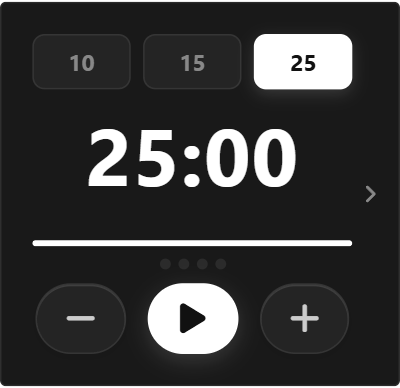
Pomodoro Deep Work Timer
Distraction is the biggest enemy of productivity. Embedding a dedicated Pomodoro Timer right above your task list keeps you locked into 25-minute sprints followed by 5-minute restorative breaks, complete with audio chimes and session counters.
- Customize Pomodoro Timer in Studio →
- Need habit streaks, countdown timers, or scratchpads? Read our dedicated roundup of the Best Notion Productivity Widgets.
3. Calendars & Weekly Schedulers
While Notion provides database calendar views, they are often too dense for a quick morning glance. Lightweight calendar widgets give you a clean date reference or a 7-day sprint planner right in your sidebar.
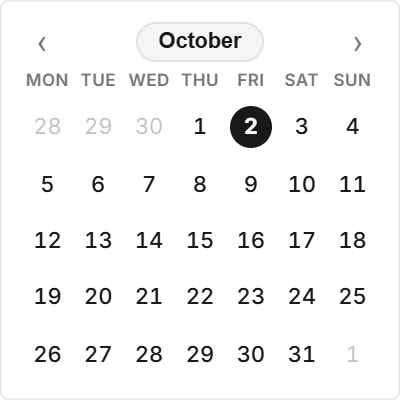
Minimal Month View & Google Calendar Embeds
From clean Bauhaus monthly grids to dark-mode synchronized Google Calendar embeds, aesthetic calendar widgets keep your schedule in clear view without opening external calendar tabs.
- Customize Minimal Month View in Studio →
- See all 8 scheduler styles in our guide to the Best Notion Calendar Widgets.
4. Interactive Data Analytics: Notion Charts
Visual charts turn raw database rows into immediate executive clarity. With the ilovewidgets Chart Studio, you can connect any Notion database in 60 seconds and visualize your metrics live:
- Bar & Column Charts: Compare monthly expenses, revenue targets, or project completion velocities.
- Line & Area Graphs: Track net worth progression, subscriber growth, or fitness trajectories over time.
- Donut & Pie Charts: Understand budget category allocations and lead source breakdowns.
When you update a property inside your Notion database, your embedded chart reflects the update live without re-embedding.
- Open Chart Studio →
- Step-by-step setup tutorial: How to Add Interactive Charts to Notion Databases.
How to Add Any Widget to Notion (3 Fast Steps)
Adding any widget to Notion takes under 15 seconds:
- Customize Your Widget: Choose your widget in ilovewidgets Studio, pick your theme (such as Notion Dark or Warm Cream), and click Copy Embed Link.
- Type
/embedin Notion: In your Notion page, type/embed, hit Enter, paste your copied URL, and click Embed Link. - Drag to Fit: Drag Notion’s corner handles to resize the widget to your target column width. The widget centers and rescales automatically without scrollbars.
For visual screenshots and multi-column layout tips, check out our complete tutorial on How to Embed Widgets in Notion.
3 Best Practices for Clean Notion Dashboards
- Prioritize Native Dark Mode Sync: Always choose widgets built specifically with Notion background matching (
#191919). This prevents blinding white iframe flashes when opening your dashboard at night. - Limit Embeds to 4–6 per Page: Keep essential widgets (a clock, calendar, and habit tracker) on your primary dashboard, and place secondary utilities in dedicated sub-pages to preserve instant mobile load times.
- Use Standalone Widgets for Daily Utilities: Save database memory for critical projects, CRM records, and notes. Use lightweight client-side widgets for clocks, timers, and scratchpads to keep your workspace snappy.
Explore all 90+ free widgets across every category in our Widgets Catalog!