Best Clock Widgets for Notion: 10 Aesthetic Clocks for Any Dashboard
Discover the best aesthetic clock widgets for Notion in 2026. Featuring retro flip clocks, minimal world clocks, and zero-flash dark mode.

A clock widget is the quintessential anchor of any aesthetic Notion dashboard. Placed in a header banner or nested into a multi-column sidebar, an interactive clock provides instant situational awareness while setting the visual tone of your entire workspace.
Unlike static images or bloated third-party embeds that flash white when Notion switches to dark mode, modern Notion clocks scale fluidly across screen sizes, synchronize automatically with Notion’s dark and light modes, and require zero database setup.
Below are the 10 best aesthetic clock widgets for Notion, complete with live customization links.
1. Minimal Retro Flip Clock
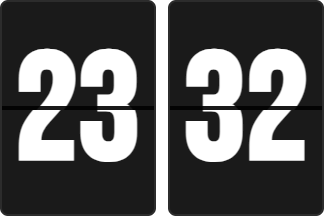
The classic mechanical split-flap clock remains the gold standard for aesthetic Notion dashboards, popular across Pinterest and productivity desk setups. It features tactile card-flipping animations, clean typography, AM/PM indicators, and 12-hour or 24-hour modes.
Customize Retro Flip Clock in Studio →
2. Minimalist Monospace Digital Clock
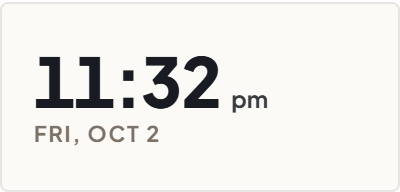
Designed for users who appreciate clean Swiss typography and high-density information architecture. The Minimalist Digital Clock renders hours, minutes, and seconds in crisp monospace lettering with zero ornamental distractions and a lightweight footprint.
Customize Digital Clock in Studio →
3. Multi-Timezone World Clock
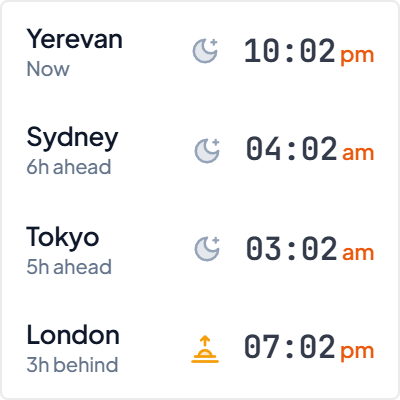
An essential utility for remote workers, digital nomads, and distributed teams. The Multi-Timezone World Clock displays multiple international cities simultaneously, calculating real-time daylight offsets and active business hours across 400+ time zones.
Customize World Clock in Studio →
4. Modern Roman Dial Analog Clock
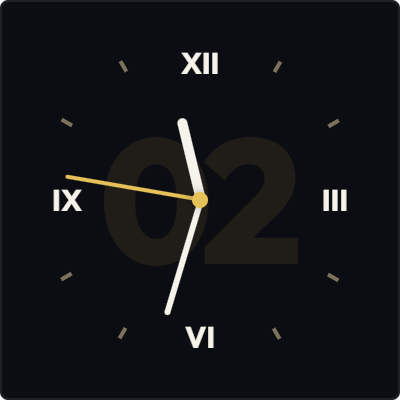
A high-end horological design that merges classical Roman numeral typography with razor-sharp modern watch hands and a continuous sweeping second movement. It brings quiet luxury and editorial sophistication to personal Notion journals.
Customize Roman Dial Clock in Studio →
5. Sliding Number Strip Clock
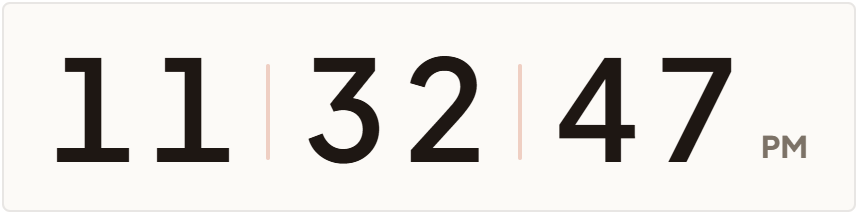
A sleek mechanical counter inspired by vintage airport timetable displays and automotive odometers. Numbers slide smoothly up and down on a vertical rail as seconds and minutes tick forward.
Customize Sliding Clock in Studio →
6. Day & Night Arc Celestial Clock
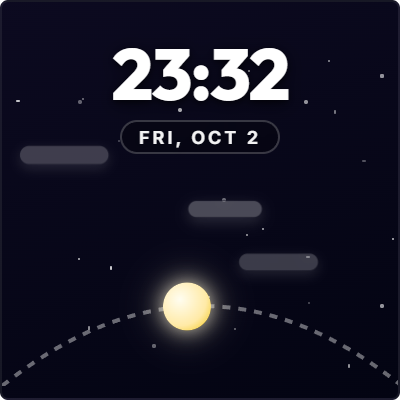
The Day and Night Arc Clock maps the dynamic trajectory of the sun and moon relative to your local time. As dawn breaks, the horizon curve brightens into warm morning tones; at dusk, it gradually transitions into deep starry indigo.
Customize Day & Night Clock in Studio →
7. Retro Macintosh 1984 Clock
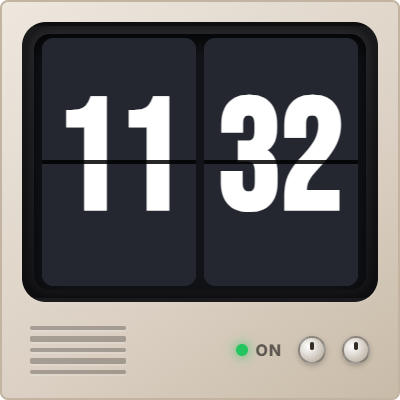
A nostalgic tribute to the original 1984 Macintosh system software. Built with authentic monochrome bitmap fonts, beveled retro window borders, and classic desktop icons that delight tech enthusiasts and vintage design fans.
Customize Macintosh Clock in Studio →
8. Pixel Planet Retro Clock
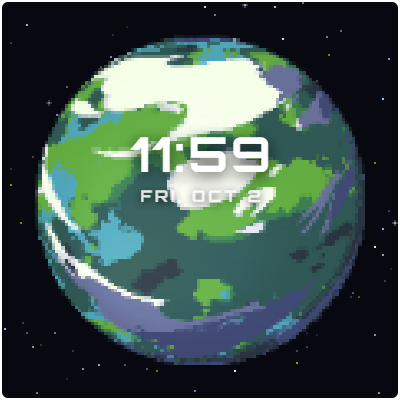
A charming 8-bit retro arcade clock featuring an animated revolving pixel-art planet, orbital rings, and floating cosmic dust. It brings playful creativity and lo-fi desk vibes into study workspaces and daily templates.
Customize Pixel Planet Clock in Studio →
9. iOS Typographic Lockscreen Clock
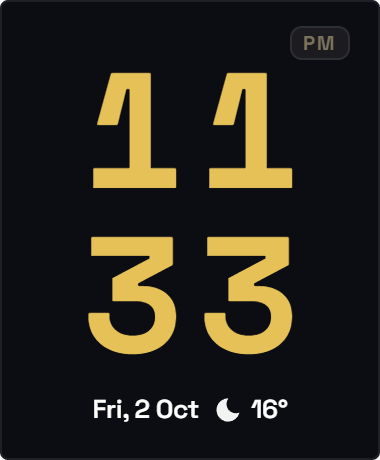
Inspired by the bold, expressive lockscreen typography in modern mobile operating systems. Giant stacked hours and minutes provide unmistakable visibility across large desktop monitors and wall-mounted dashboard displays.
Customize Lockscreen Clock in Studio →
10. Classic Bauhaus Minimal Analog Clock
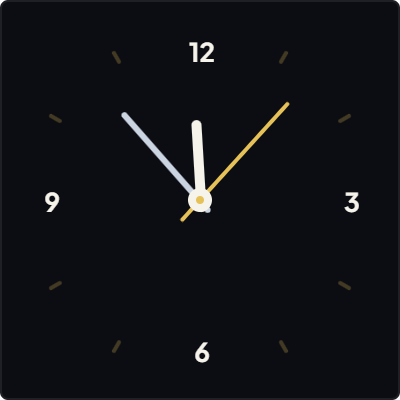
A masterclass in functionalist Bauhaus minimalism. Simple geometric hour indices, slender baton hands, and a balanced circular dial make this widget timeless, harmonizing effortlessly with any Notion workspace.
Customize Bauhaus Analog Clock in Studio →
How to Embed and Resize Clocks in Notion
- Customize Your Clock: Open your chosen widget in ilovewidgets Studio, pick your preferred theme (like Notion Dark or Warm Cream), select 12h or 24h format, and copy the embed link.
- Paste into Notion: In your Notion workspace, type
/embed, press Enter, and paste your copied link. - Adjust the Block Width: Hover over the embedded clock block in Notion, click and drag the side handles until it fills your intended column width. All ilovewidgets clocks automatically rescale and center smoothly without scrollbars.
For step-by-step layout and multi-column tips, see our guide on How to Embed Widgets in Notion. To pair your clock with calendars and trackers, explore our roundups of the Best Notion Calendar Widgets and Best Notion Productivity Widgets.